
A Small Act of Resistance – Part 3
Simple steps to reclaim your privacy on google and gmail
IPHONE/desktop
3
google / GMAIL
Google is the most thorough data collector of the lot, not because it is necessarily the most sinister, but because most people use it for so many things at once: search, email, maps, photos, calendar and video. Each of these is a separate stream of data, and they all feed into the same profile, a detailed picture of your life that is the real price of all these free services. Gemini, Google’s AI assistant, now sits across all of them and reads your emails to summarise them, suggest replies and personalise everything else. Most of this is switched on by default, and the settings to turn it off are spread across several pages that few people ever visit.

Download what Google knows about you first
Go to www.myaccount.google.com and sign in. In the left menu, click Data & privacy
Then scroll down to Download or delete your data and choose Download your data. You can also go straight to takeout.google.com, which is the same tool.
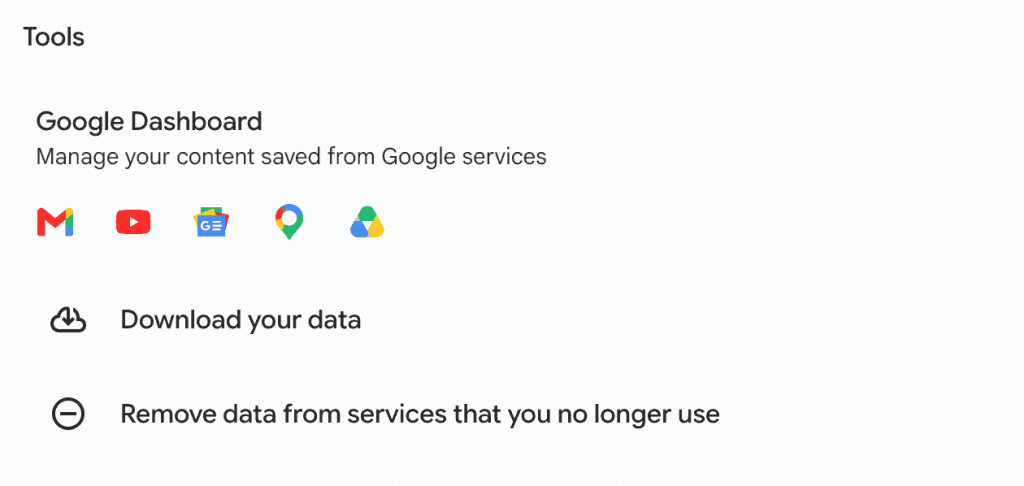
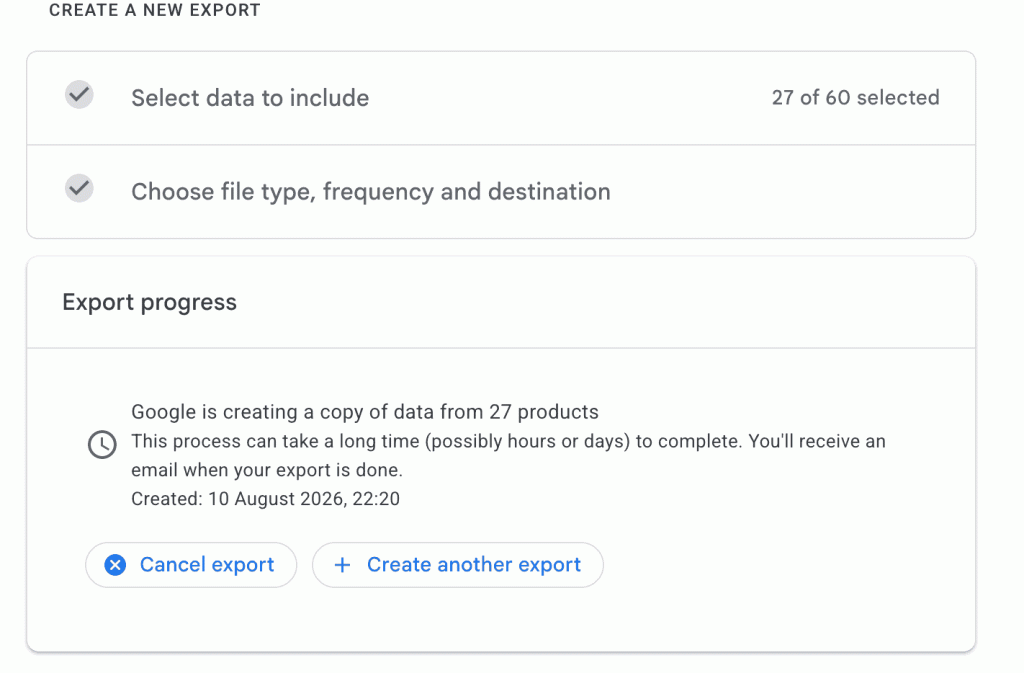
Everything you use is ticked by default, so untick the lot and choose only what interests you. Search history, Timeline, YouTube, Gmail and Maps together tend to make for uncomfortable reading. Then pick how you want it delivered, usually a download link by email, and wait. A full export can take hours or even a couple of days to arrive.
Turn off Gemini’s memory of past chats (only for gemini users)
Open the Gemini app, go to Settings, then Personal Context, then Your Past Chats with Gemini, and switch it off. By default Gemini uses your previous conversations to build a picture of you over time. This turns that off.
Switch off Keep Activity
Still in Gemini’s settings, go to Activity and turn off Keep Activity. This stops your prompts, questions and any files or photos you have shared with Gemini being stored and used to improve Google’s models. You can also delete everything collected so far from this same screen.
Review Web and App Activity
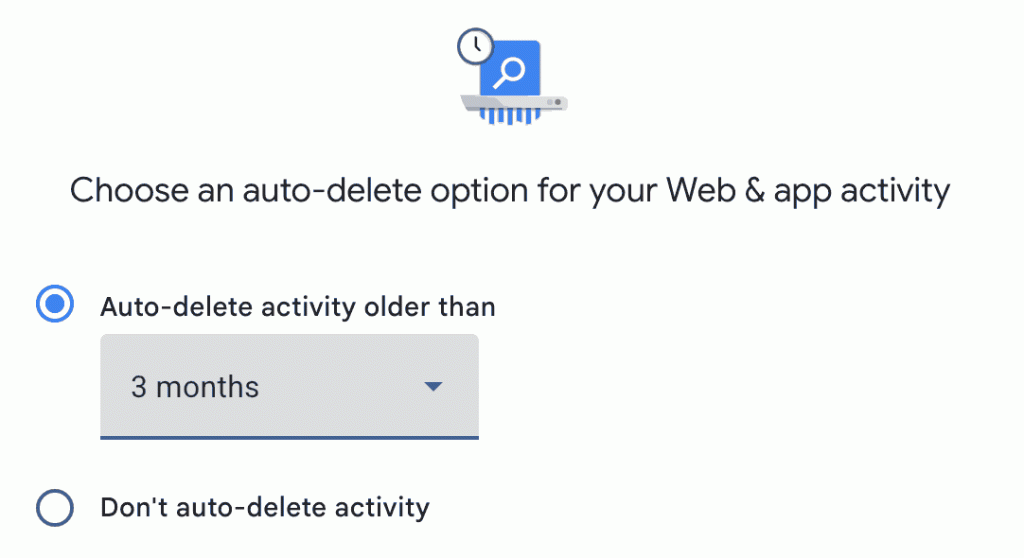
Go to myaccount.google.com, then Data and Privacy, then Web and App Activity. Rather than switching this off entirely, which makes Google’s services frustratingly limited, set it to auto delete on the shortest interval available, currently three months.Then confirm and GOT IT.


Turn off personalised adverts
Visit myadcenter.google.com and switch off personalised ads. You will still see adverts but they will not be built from a detailed profile of your behaviour.
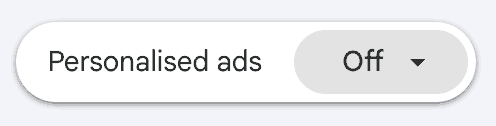
Switch off Smart Features in Gmail
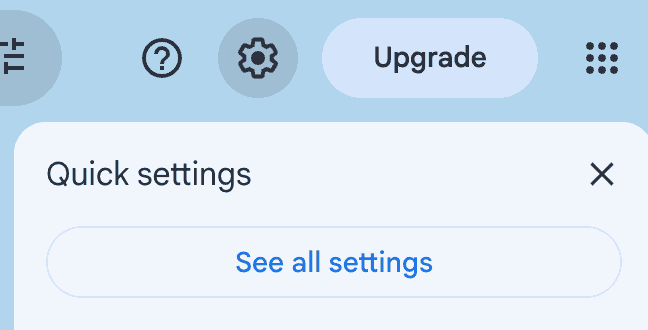
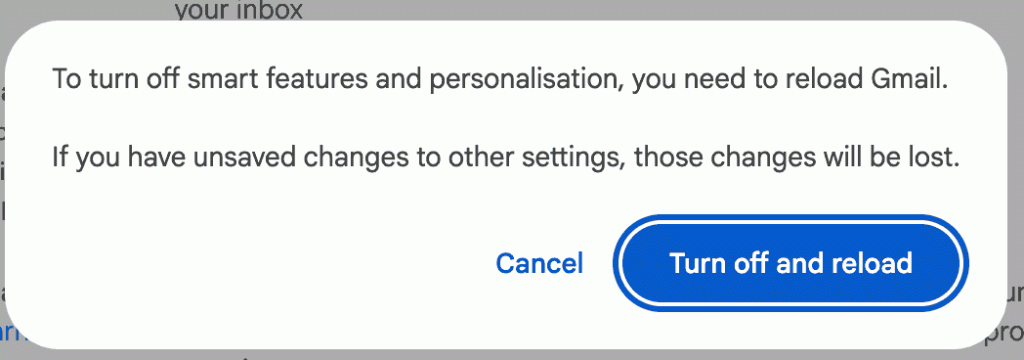
In Gmail go to Settings, then See All Settings, then General, and look for Smart Features and Personalisation. Switch it off. This stops Gemini reading your emails to summarise them, draft replies or extract information. Importantly this needs to be switched off in two places, once in your Gmail settings and once in your broader Google account settings, as they operate independently.

Check Google Photos
If you use Google Photos, go to Settings within the app and look for any Gemini or AI features. Switch them off if you would rather your photos were not being analysed to improve Google’s models.
What stays outside your control: even with Keep Activity switched off, Google retains your Gemini conversations for a short window of around 72 hours for safety and abuse prevention purposes. Turning off activity logging is genuine protection against long term storage but it does not mean your conversation is invisible the moment you have it. Google also continues to use anonymised data to improve its services regardless of your settings, though it states this cannot be traced back to you individually.

use the desktop version of Gmail for the paths, because a few of these options are hard to find on the phone app.
Go to www.mail.google.com and sign in.
Click on the settings (little wheel before Upgrade) and on ‘See all settings’.
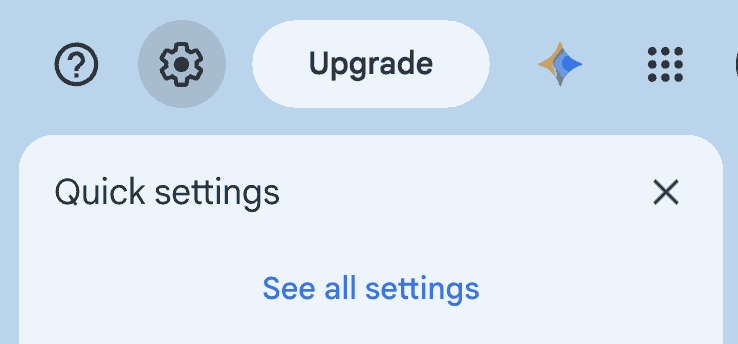
general tab
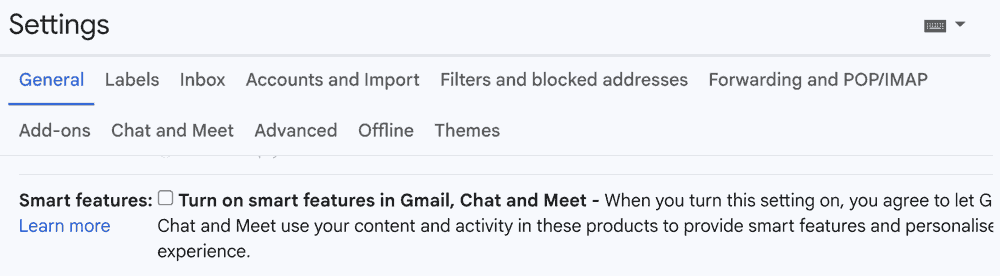
Smart features:
Scroll down to find smart features. Untick “Turn on smart features in Gmail, Chat and Meet”. This is the main switch that stops Google scanning the content of your emails to power its automatic features.
Google Workspace smart features
On the same tab, click “Manage Workspace smart feature settings” and turn off both options: “Smart features in Google Workspace” and “Smart features in other Google products”. The second one stops your email content from being used to personalise Maps, Wallet, Assistant and so on.


Then click save.
Scroll back up.
Images:
Choose “Ask before displaying external images”. Many newsletters and marketing emails hide a tiny invisible image that tells the sender when and where you opened the email. With this setting on, that tracking does not work unless you choose to load the images. On the phone app it is under Settings, then your account, then Images.

Filters and Blocked Addresses tab:
Look for any filter you did not create yourself, especially one that forwards or deletes emails automatically.
Click on Inbox (save your settings first), and go at the bottom to see your last activities, click on Details:
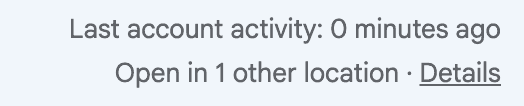
You may see Authorised Application in USA, this is fine as it is related to the app you are using.