
A Small Act of Resistance – Part I
Simple steps to reclaim your privacy on iPhone
Your iPhone is more useful to advertisers than it is to you and almost all of the settings were switched on without you being asked. The first part of the series walks through the settings that actually matter: app tracking, location and the quiet log of everywhere you have been, analytics, Siri, Safari and the tracking pixels hidden in your email. Every step has a screenshot and the whole thing takes about fifteen minutes.
IPHONE
Privacy & Security
(August 2026)
If you need the same information for Android, please email me.

Go to Setting and select Privacy & Security
TRACKING
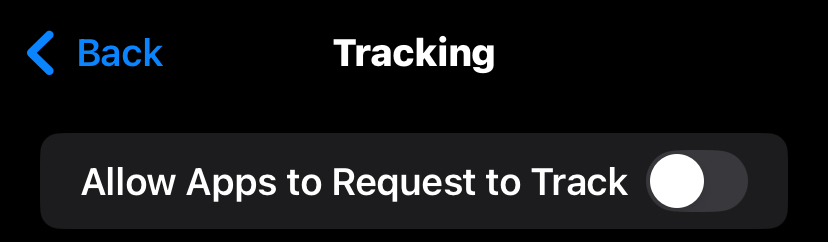
Turn off “Allow Apps to Request to Track”. This blocks apps from even asking to follow you across other apps and websites. It is the single most effective switch on the phone.
LOCATION SERVICES
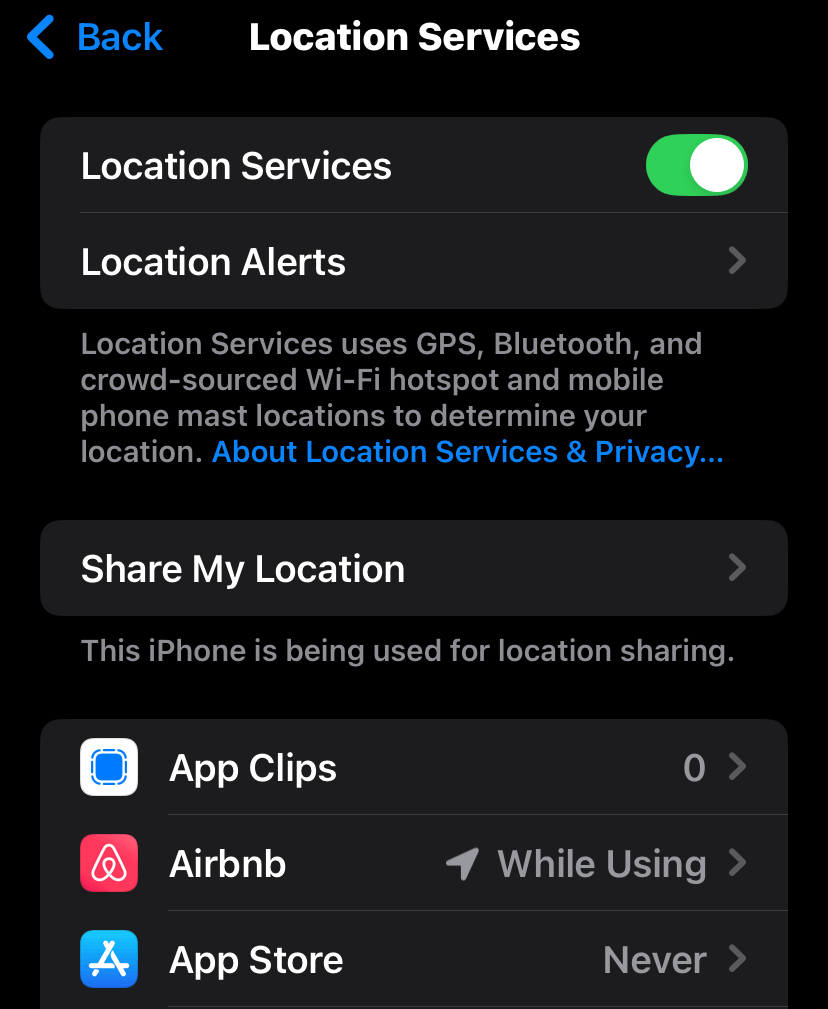
Go through each app and set it to “Never” or “While Using” rather than “Always”, and turn off “Precise Location” for anything that only needs a rough area, like weather apps.
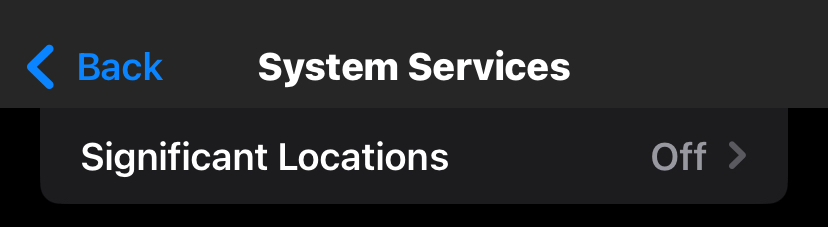
Then scroll to the bottom into System Services and turn off “Significant Locations“, which is Apple quietly keeping a history of the places you visit. Once disabled, your iPhone stops saving this data.
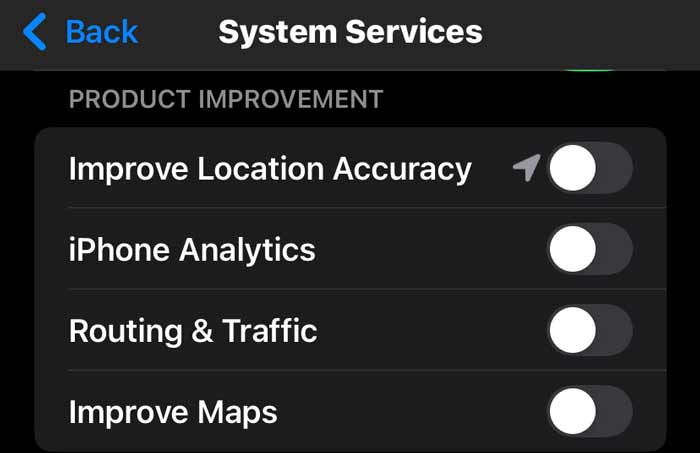
Still in System Services, scroll to the bottom to find Product Improvement and turn all four switches off. These four switches send data about how you use your device directly to Apple. Turning them off means your iPhone stops reporting your behaviour back, without affecting how anything works.
APP PERMISSIONS (same section)
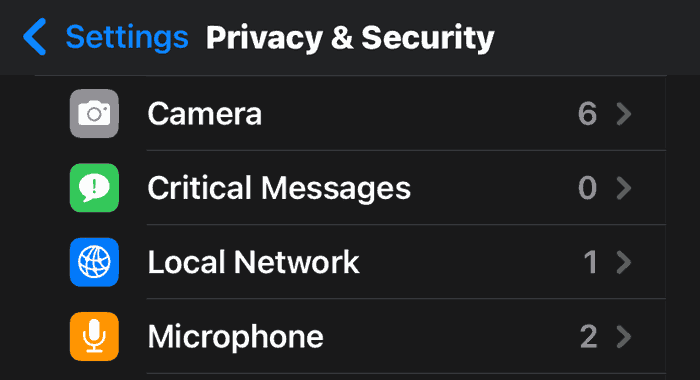
Go through Microphone, Camera, Contacts, Photos, Bluetooth and Local Network one by one, and remove anything that does not obviously need access. For Photos in particular, set apps to “Limited Access” so they only see the pictures you choose rather than your whole library.
ANALYTICS & IMPROVEMENTS
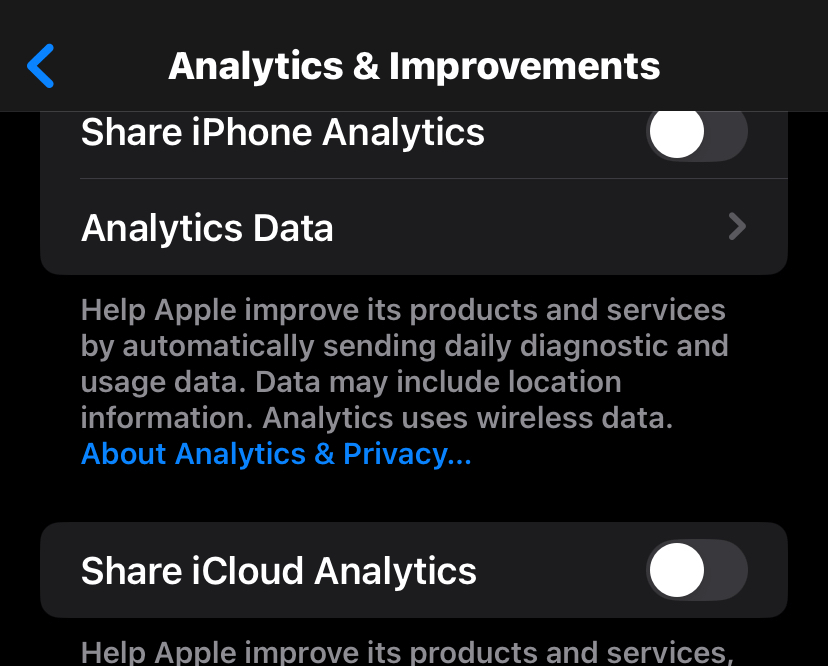
Go back to Privacy & Settings. Find Analytics & Improvements near the bottom. Turn everything off. This stops your usage data going to Apple and to developers.
APPLE ADVERTISING
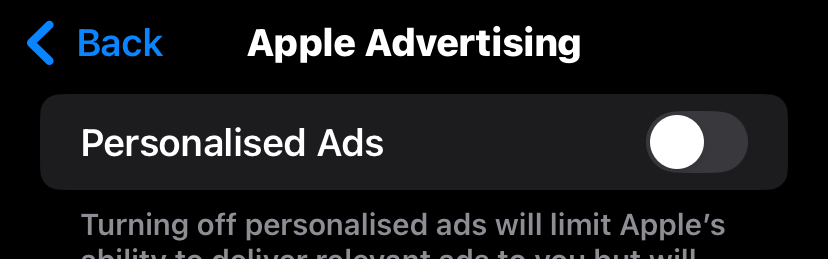
Turn off “Personalised Ads”.
APP PRIVACY REPORT
Turn this on. It does not change anything by itself, but it shows you which apps have been contacting which domains, which is very useful because it makes the invisible visible.

SETTINGS

SEARCH
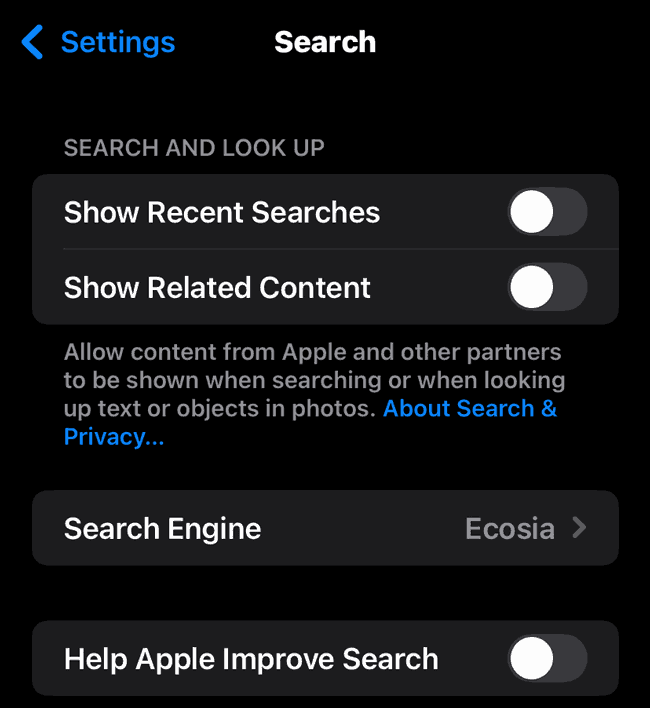
Go to Settings, then Search, and turn off Show Recent Searches.
This stops your phone keeping a visible log of everything you have searched for.
In the same screen, turn off Show Related Searches.
This stops your search terms being sent to Apple to generate suggestions.
And finally, switch off “Help Apple Improve Search”.
Siri
Go to Settings, then Siri. If you never use Siri, you can turn it off completely.
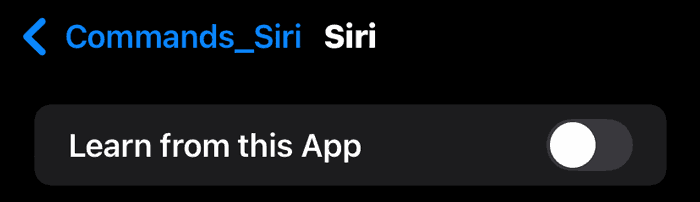
To stop Siri learning from a particular app, go to Settings, then Apps, choose the app, and turn off “Learn from this App”. This learning stays on your phone, but turning it off keeps that app out of your suggestions and searches. Back in the Siri settings, use “Siri & Dictation History” to delete what has already been stored on Apple’s servers.
SAFARI
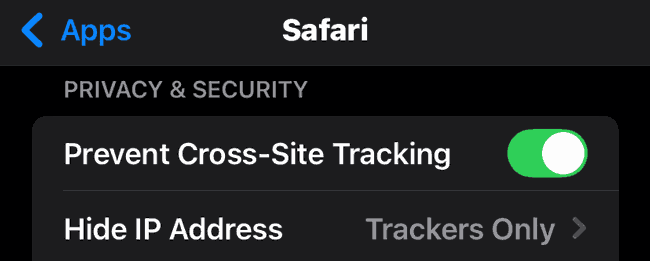
Go to Settings, then Apps, then Safari. Turn on “Prevent Cross-Site Tracking”: It stops advertisers and data brokers following you from one website to the next, building a profile of your browsing habits across the web.
Set “Hide IP Address” to “From Trackers”.
Then scroll down, tap Advanced at the bottom and make sure “Advanced Tracking and Fingerprinting Protection” is set to “Private Browsing”.
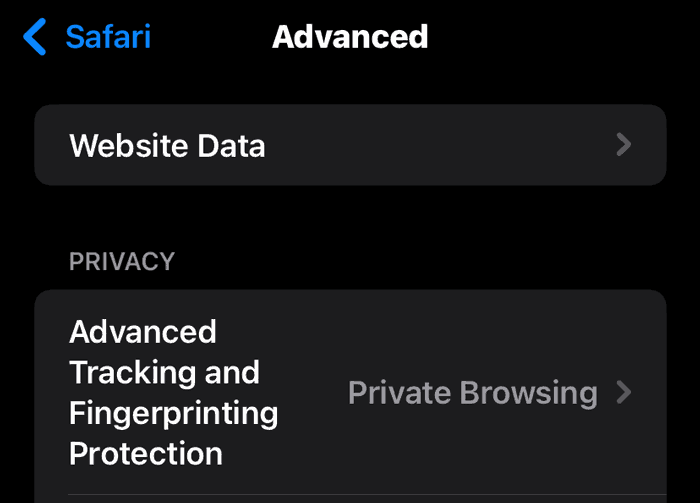
Removing all website data wipes the cookies and local storage that keep you signed in, so Safari will log you out of everything and you will need to sign in again on each site the next time you visit. So may not be a good idea.
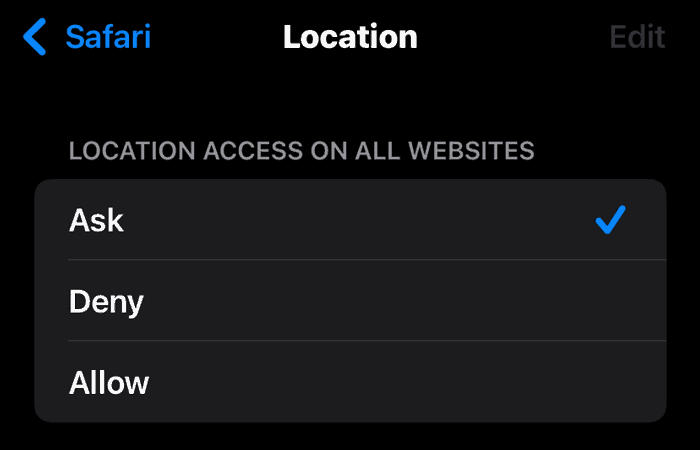
Stay there and scroll down and under “Settings for Websites”, tap Location and make sure it is set to Ask rather than Allow. Go back again, tap Microphone and set it to Ask as well. Do the same for Camera.
If you want proper privacy when browsing, consider changing the search engine to Brave (or DuckDuckGo). Brave is also a much better browser than Safari. See Your browser can be green too.
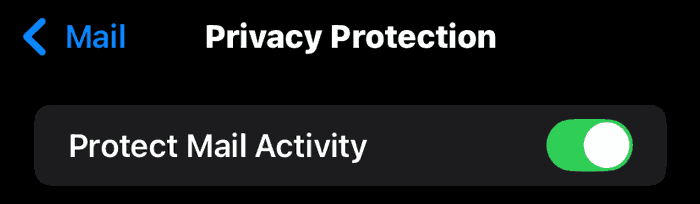
In Settings, then Apps, then Mail, open Privacy Protection and turn on “Protect Mail Activity”. This blocks the tracking pixels that tell senders when and where you opened their email.
This was Part 1: iPhone settings
Next week, I will publish Part 2: Meta (What’s app, Instagram and Facebook Privacy)
In two weeks time, Part 3: Google and Gmail.